
Mobile apps
Join, drive, and monitor sessions from your phone or tablet, with a touch keyboard bar built for terminals.
taiku works on phones and tablets with a touch-first layout: one terminal fills the screen, a keyboard bar puts the keys terminals actually need within reach, and panels slide up from the bottom.
Get the app
You can join any session from your phone's browser, paste the session link and you are in, no install required. The native iOS and Android apps are currently in private testing; invited testers can install builds made available through TestFlight and Play. Public store links will appear on the downloads page when those listings are live.
On a phone, taiku shows one tile at a time instead of the side-by-side layout you get on a desktop. Swipe left or right, or tap a labeled tab along the bottom, to move between terminals, browser tiles, file previews, and remote desktops. Hold the tab bar to see the full Open tabs list. (A narrow window on a real computer stays in desktop mode; taiku switches to the touch layout only on actual touch devices.)
Browse without leaving the app
The native mobile app can open web pages as browser tiles inside your session. Tap a web link in a terminal, or choose Open Browser from the command palette, and taiku switches to a full-screen browser tile. It has its own URL bar, back and forward controls, and multiple browser tabs.
The browser tile appears in the same bottom tab bar as your terminals, so you can move between a page and the command that launched it without leaving taiku. Browser tiles require the native app; a session opened in your phone's regular browser uses normal browser tabs instead.
Settings and sharing on a phone
Mobile Settings starts with a compact list of sections. Open one section to change it, then use the back button to return to the list. This keeps long settings pages from turning into one continuous scroll on a small screen.
When you create an invite link in the iOS app, taiku opens the system share sheet so you can send it directly to Messages, Mail, or another app. Cloud project creation also opens as a sheet that stays above the on-screen keyboard; accounts with Windows access can start a Windows machine directly from the Cloud header.
The touch keyboard bar
Phone keyboards are missing the keys terminals lean on constantly: Escape, Tab, Control combinations, pipes, tildes. taiku adds a keyboard bar above the on-screen keyboard that puts all of them one tap away.
The bar is organized into groups. Each group is a single button that holds a set of related keys, with two ways to use it:
- Quick tap sends the group's most recently used key, great for repeating an action. Tap the Ctrl group right after sending Ctrl+C and it fires Ctrl+C again instantly.
- Hold and slide opens the full set. Press a group, the keys fan out, slide to the one you want, and release.
A couple of groups have handy modes. The Ctrl and Opt groups are sticky:
tap once to arm the modifier, then type a letter on the keyboard to combine them
(tap Ctrl, type c, get Ctrl+C). The arrow and symbol groups pin open,
so you can fire several keys in a row, perfect for scrolling command history or
moving through a file.
The groups cover the full terminal vocabulary:
- Esc and Tab for mode switching and completion.
- Ctrl for the common combos (C, D, Z, L, R, and more).
- Opt for word-level editing, jump or delete a word at a time, or insert the last argument from the previous command.
- Arrows for directional navigation, including Shift+Tab.
- Symbols, split into a few fans so each stays readable, covering brackets, punctuation, pipes, and the rest.
- Sel for selection and clipboard (paste, copy the whole terminal, line select, character select).
- Tools (the round button at the end) for the extras: undo, hide the keyboard, clipboard history, file upload, and the mic for voice dictation.
Selecting and copying text
Copying terminal output by hand on a touch screen is fiddly, so the Sel group gives you explicit modes. Line mode copies whole lines, tap a line or drag across several, and the text lands on your clipboard automatically. Character mode lets you drag to grab an exact value like a URL or hash. The mode stays active for repeated selections; tap it again or choose Off to return to normal scrolling.
Open files and images
When a session prints a file path, you can open it right on your phone. The file viewer expands to full screen so previews are actually readable on a small display.
You can also send images straight into the session. Tap Upload in the Tools group to open your camera or photo picker; the image is shared with everyone in the session. It is the fastest way to capture an error on another screen or a photo of a hardware setup and drop it into context.
Peek and borrow a terminal
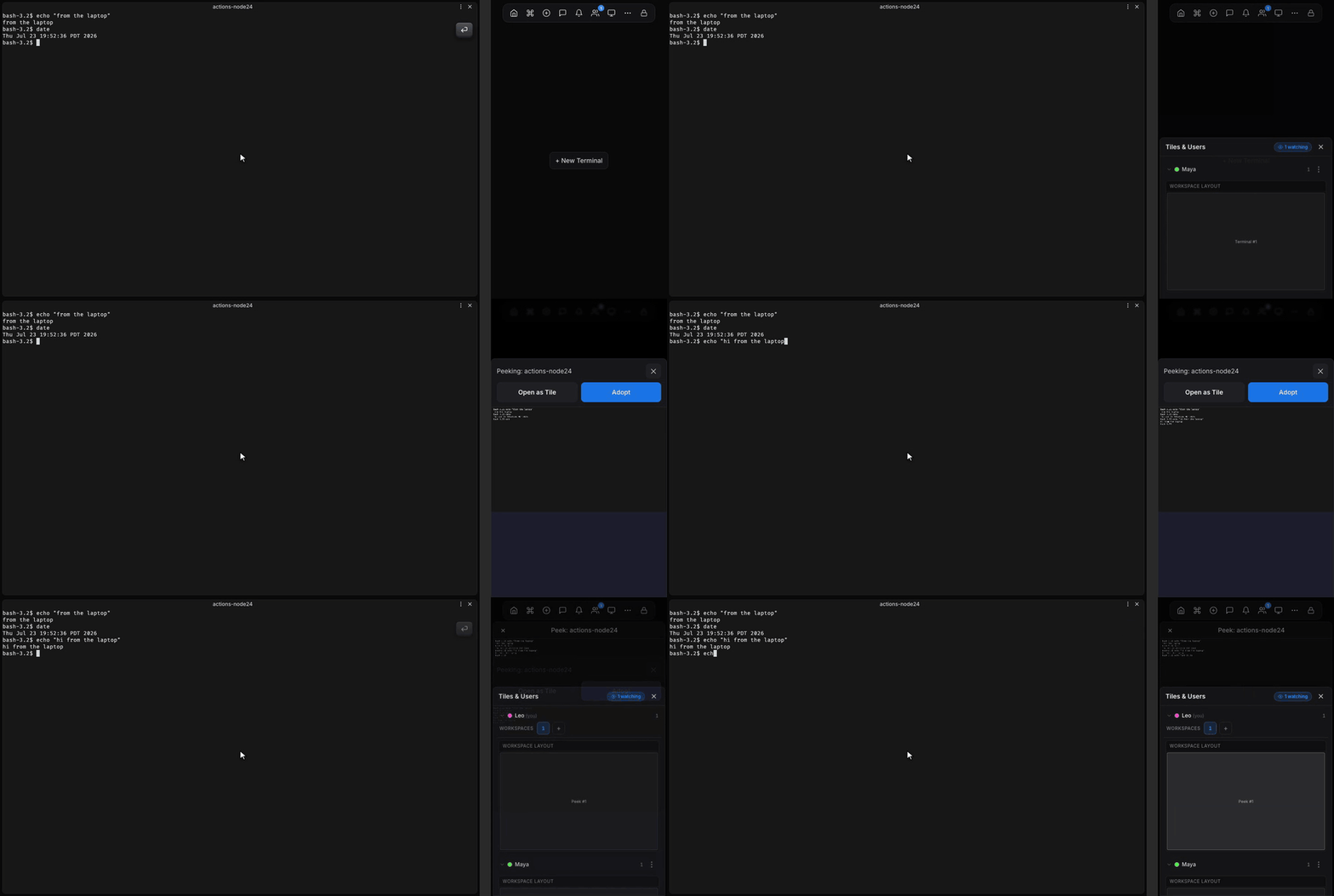
You can quietly watch a teammate's terminal and, when you need to, take the keys. On a phone, panels like peek, tunnels, and chat slide up as bottom sheets that overlay the terminal, swipe down or tap outside to dismiss them.
If the session has a remote desktop tile, you can view and control the remote machine from your phone too. The page rotates into landscape when the tile is in focus. A single-finger tap clicks, a drag is a left-button drag, pinch to zoom and two-finger drag to pan. Tap with three fingers (or the keyboard button on the tile's toolbar) to type, and use the on-canvas menu for Copy, Paste, app and window switching, and quick zoom.
Adjust the view
Tune the terminal for your screen and eyes, font size and related display settings are right where you'd expect them.
taiku also keeps the layout sensible while the keyboard is up: the keyboard bar sits directly above the on-screen keyboard, the terminal fills the space that remains, and the page never slides out of view. Chat behaves the same as on desktop, just as a bottom sheet.