
taiku
Collaborative terminal sessions, tunnels, plugins, and agents.
taiku is a terminal workspace that lets you share live shell sessions with anyone, instantly. You run a single command on your machine, get a URL, and collaborators join your terminal in their browser, with no installs, no SSH keys, and no port forwarding.
But taiku is more than a screen-sharing tool for terminals. It is a full workspace: you can tile multiple shells side by side, expose local ports as HTTP tunnels, install plugins that add custom panels and toolbar actions, record sessions, and manage devices for remote access. Sessions run across a multi-region mesh, so collaborators connect to the nearest server and traffic routes transparently to wherever the session lives.
See what's new for the latest desktop and CLI releases.
Share a session in seconds
The core workflow is deliberately simple. Run taiku, share the link, and your
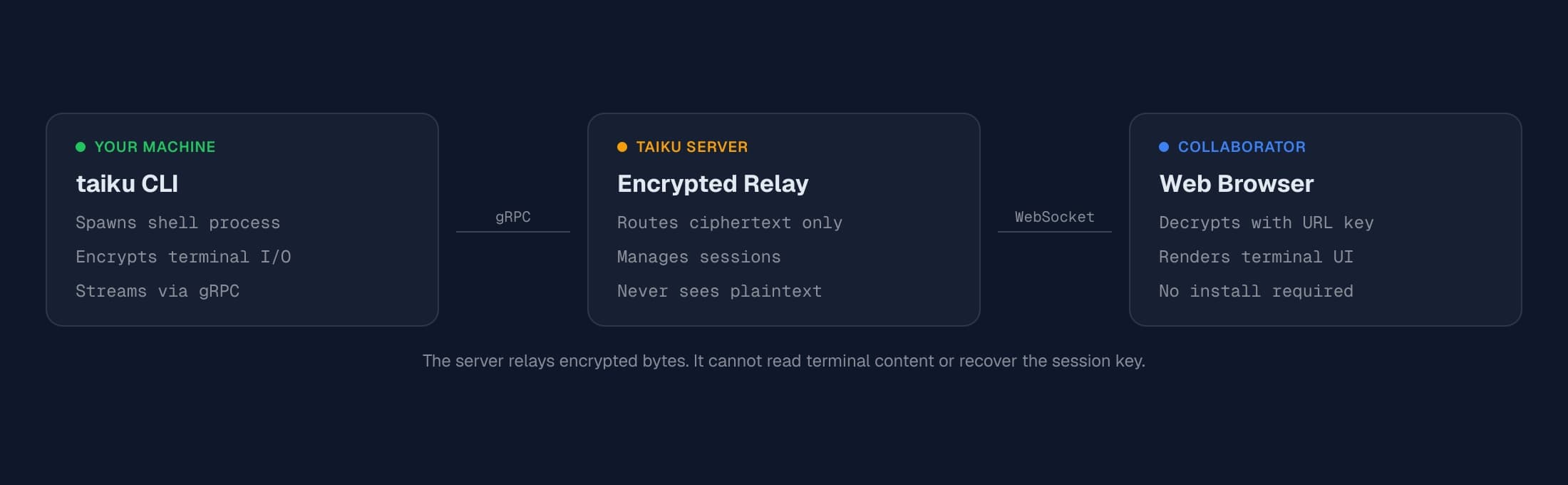
collaborator joins from their browser. The session secret lives in the URL
fragment, so it stays client-side rather than being sent in the normal HTTP
request.
You can generate separate reader, writer, and admin links when you want more control over access, and sessions automatically reconnect after brief network interruptions.
To get started, follow the installation guide and then walk through the quickstart tutorial. For a deeper look at how sessions, sharing, and access control work, see Share a Session.
Turn one shell into a collaborative workspace
A taiku session is not limited to a single terminal. You can split panes horizontally or vertically, create multiple workspaces, and mix different tile types: shells, tunnel previews, peek panels for monitoring other participants' terminals, and plugin panels that embed custom UIs.
Each participant gets their own workspace layout. You arrange your tiles the way you want without disrupting anyone else's view of the same session. When you need to hand off a shell to a collaborator, the workspace adoption protocol handles ownership transfer cleanly rather than having people fight over the same shell.
This makes taiku well-suited for pair programming, live debugging, team onboarding, and any workflow where multiple people need to see and interact with the same set of terminals. Read more in the collaboration guide and workspace management.
Expose local services with tunnels
When you are building a web app or API locally, taiku can expose it through an
HTTP tunnel so collaborators can access it directly from their browser. Run
taiku --tunnel 3000 and your local port 3000 becomes reachable through a taiku
URL. The tunnel appears as a tile in your workspace, giving everyone in the
session a live preview alongside the terminal.
This is especially useful for UI work, API testing, and demos where you want collaborators to see both the code and the running application. Learn how to set up and manage tunnels in the tunnels guide.
Work across devices
taiku has a native desktop app that keeps your device registered and reachable. With the desktop app running, you can launch sessions remotely from the dashboard, get native recording support, view another registered machine's desktop from the taiku app, and maintain persistent device presence.
On mobile, you can join sessions to observe, copy text, and interact with terminals when you are away from your main machine. On machines without a desktop, or in automated jobs, the CLI runs without opening a window.
See the desktop app guide, remote desktop guide, mobile guide, and device management guide for details on each mode. If you want a managed remote machine for a project, see cloud workspaces.
Review code changes inline
When your working directory is a git repository, taiku can show diffs, branch status, and open pull requests right in the workspace. Open a worktree's diff from terminal output or the switcher, review changed files and individual hunks, and turn on Track diffs to capture exactly what each command, or each AI agent step, changed. See Reviewing changes.
Dictate with your voice
Press a key and talk: taiku transcribes your speech and inserts it where your cursor is, shaping it into a runnable command in a terminal, a message in an agent's chat box, or plain text anywhere else. See Voice dictation.
Plugins
taiku includes a plugin system that lets you add custom panels, toolbar buttons, hotkeys, and shell aliases to your sessions. Plugins run in sandboxed iframes and communicate with the session through a structured postMessage protocol with fine-grained permissions.
Bundled reference plugins include Event Log, Chat Notifier, Music Player, File Browser, and Terminal Commander. Agent status and costs are already visible in the main session UI; see Agents. You can also build your own plugins using the plugin SDK.
Start with the plugins overview, explore the built-in plugins, or jump straight to building your own.
Printing and PDFs
Every docs page is a normal web page: use your browser’s Print or Save as PDF when you want a handout, an airplane-friendly copy, or something to attach to a ticket. Open Print preview first so you can pick portrait or landscape, margins, and whether background colors should print; diagrams and code blocks usually read best with backgrounds enabled.