
Building Plugins
Build taiku plugins with panels, hotkeys, storage, shell aliases, and the SDK host bridge.
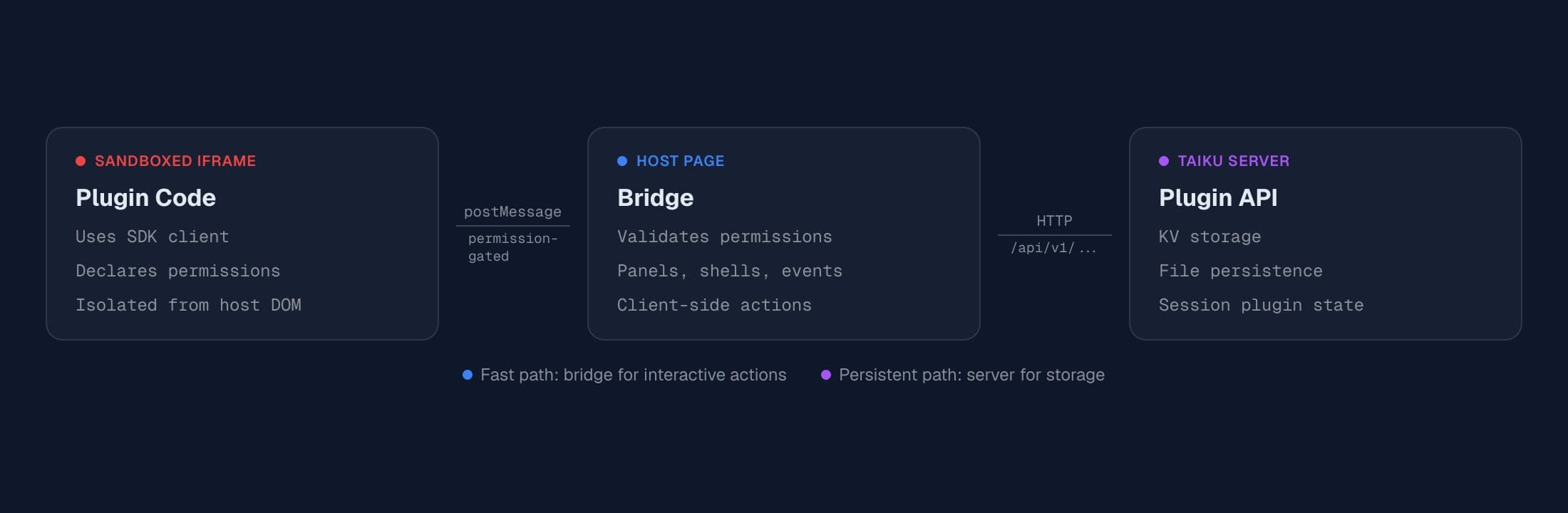
Taiku plugins run in sandboxed iframes and communicate with the host application through a typed postMessage protocol. The plugin SDK wraps this protocol into a clean async API, so you write normal TypeScript and the SDK handles serialization, permission enforcement, and message routing.
This guide walks you through building a plugin from scratch -- from creating the manifest to rendering a panel that reads live terminal output.
Prerequisites
Before you start, you need:
- Node.js 18+ installed
- A running taiku session (for testing your plugin against a live session)
- Familiarity with HTML and JavaScript (plugins render in iframes, so any web technology works)
The plugin SDK is published as @taiku/plugin-sdk. You will install it as a
dependency, but plugins can also use the pre-built browser bundle if you prefer
a simple <script> tag over a build system.
How plugins work
Every plugin consists of two pieces: a manifest that declares what the plugin needs, and one or more HTML files that implement the plugin's UI and logic.
When you enable a plugin, taiku reads the manifest to understand what
permissions the plugin requests, what panels it provides, and what toolbar
actions and hotkeys it registers. Then it creates a sandboxed iframe for each
panel, loads the HTML file into it, and sends an initialization message with the
plugin ID and session ID. From that point forward, the plugin communicates with
taiku exclusively through postMessage.
The sandbox is strict. Plugin iframes have the sandbox attribute set, which
means no access to the parent page's DOM, no shared cookies, no direct script
execution in the host context. The only channel is the message protocol.
Creating a plugin with the scaffolding tool
The fastest way to start is with the create-taiku-plugin scaffolding tool:
npm create taiku-plugin@latest my-plugin
cd my-plugin
This creates a working starter with:
manifest.jsonwith marketplace/support metadataindex.htmlplussrc/main.tswired to@taiku/plugin-sdkpackage.json,vite.config.ts, and a build script that copiesmanifest.jsonintodist/README.mdthat maps taiku concepts to common plugin patterns
You can still create these files manually -- there is no hidden runtime -- but the scaffolding gives you a much stronger default path.
Load your plugin from a URL
Custom plugins are loaded from a manifest URL inside taiku:
- Open the plugin panel (toolbar or command palette).
- Go to the Submit tab. (That tab also holds registry submission; for your own work you want Load Custom Plugin at the top.)
- Paste the full URL to
manifest.jsonand click Load. If you paste a folder URL without the filename, taiku appends/manifest.jsonfor you. - Switch to the Installed tab and Enable the plugin if it is not on yet.
HTTPS and your dev server. The plugin panel runs in your browser. If taiku
is open on https://…, the browser will block http://localhost:… as mixed
content. Practical options:
- Tunnel the dev port in the same session (
taiku --tunnel 5174with the scaffold’s default port), then use your tunnel base URL plusmanifest.json(same pattern as other tunneled HTTP paths; see the tunnels guide). - Use a local http taiku tab during web development (if your setup serves
taiku over HTTP), where
http://127.0.0.1:5174/manifest.jsoncan load. npm run buildand host thedist/folder on any https static host, then load…/manifest.jsonfrom there.
Session installs. Loading from Load Custom Plugin registers the plugin in your client. Registry installs from Browse also sync to the session for other participants when you are a tunnel admin; keep that in mind if you are debugging with collaborators.
The manifest
The manifest is a JSON file that declares everything taiku needs to know about your plugin. Here is a complete example for a plugin that opens a sidebar panel and reads terminal output:
{
  "id": "my-org.shell-inspector",
  "name": "Shell Inspector",
  "version": "1.0.0",
  "author": "my-org",
  "description": "Inspect terminal output and highlight patterns",
  "tagline": "Pattern matching for terminal output",
  "homepageUrl": "https://github.com/my-org/shell-inspector",
  "documentationUrl": "https://github.com/my-org/shell-inspector#readme",
  "supportUrl": "https://github.com/my-org/shell-inspector/discussions",
  "fundingUrl": "https://github.com/sponsors/my-org",
  "bugsUrl": "https://github.com/my-org/shell-inspector/issues",
  "license": "MIT",
  "keywords": ["terminal", "inspector", "patterns"],
  "categories": ["devtools"],
  "permissions": [
    "session.read",
    "terminal.read",
    "ui.panel",
    "ui.toolbar.custom",
    "events.subscribe",
    "hotkey.register"
  ],
  "panels": [
    {
      "id": "inspector-panel",
      "title": "Shell Inspector",
      "position": "sidebar",
      "htmlUrl": "panel.html",
      "defaultWidth": 360
    }
  ],
  "toolbarActions": [
    {
      "id": "open-inspector",
      "label": "Shell Inspector",
      "icon": "<svg xmlns=\"http://www.w3.org/2000/svg\" width=\"18\" height=\"18\" viewBox=\"0 0 24 24\" fill=\"none\" stroke=\"currentColor\" stroke-width=\"1.5\" stroke-linecap=\"round\" stroke-linejoin=\"round\"><circle cx=\"11\" cy=\"11\" r=\"8\"/><line x1=\"21\" y1=\"21\" x2=\"16.65\" y2=\"16.65\"/></svg>",
      "panelId": "inspector-panel"
    }
  ],
  "hotkeys": [
    {
      "id": "toggle-inspector",
      "label": "Toggle Shell Inspector",
      "hotkey": "Cmd+Shift+I",
      "category": "Plugins",
      "action": { "type": "openPanel", "panelId": "inspector-panel" }
    }
  ]
}
Manifest fields explained
id is a globally unique identifier for your plugin. Use a reverse-domain
style like my-org.plugin-name. Built-in plugins use the taiku. prefix;
example plugins use example..
name is the human-readable display name shown in the plugin panel and
toolbar.
version follows semver. Taiku uses this for update detection when plugins
are loaded from URLs.
homepageUrl, documentationUrl, supportUrl, fundingUrl,
and bugsUrl let taiku surface the plugin's ecosystem links directly in the
marketplace and detail UI.
license and keywords improve discovery and make distribution terms
explicit.
permissions is an array of permission strings. Taiku enforces these at
runtime -- if your code calls a bridge method that requires a permission you did
not declare, the call is rejected. Always declare the minimum set you need. See
the permissions reference for the full list and risk
notes.
panels defines the iframe panels your plugin provides. Each panel has:
id-- unique within the plugin, referenced by toolbar actions and hotkeystitle-- displayed in the panel headerposition-- one ofsidebar,sidebar-left,bottom,floating,tooltip, oroverlayhtmlUrl-- path to the HTML file, resolved relative to the manifest locationdefaultWidth/defaultHeight-- initial dimensions in pixelspersistPosition-- iftrue, reopening the panel restores its last dragged location and size instead of returning to the manifest defaultsbackground-- iftrue, the panel is invisible (used for background event listeners)
toolbarActions adds buttons to the taiku toolbar. Each action can
reference a panelId to toggle that panel, or an eventType to broadcast an
event when clicked. The icon field accepts inline SVG strings.
hotkeys registers keyboard shortcuts. The action field supports three
types:
{ "type": "openPanel", "panelId": "..." }-- toggles a panel{ "type": "broadcastEvent", "eventType": "..." }-- emits an event{ "type": "toggleToolbar", "actionId": "..." }-- toggles a toolbar action
The hotkey you declare is a default, not a claim. Users can rebind it,
clear it, or reset it to your default from Settings → Keyboard, and their choice
is keyed on your plugin id plus the hotkey id. That means it survives a plugin
update: republishing your manifest with a different hotkey changes the default
but never moves a key the user chose. Keep hotkey ids stable for that reason,
and don't put a : in them.
Because the plugin id is part of that key, it has to be short and simple: 1 to
64 characters, letters, digits, ., _ and -, starting with a letter or
digit. A plugin whose id breaks that rule will not install.
Pick a default that is unlikely to be taken. A shortcut that collides with a builtin command or another plugin shows up in the editor named on both sides, and the user is told about it when they install or update your plugin, so it never changes hands quietly. Until they resolve it, the builtin wins.
Avoid Ctrl+Alt+… as a default. On German, French, and other layouts with a
third-level key, Windows and Linux report AltGr as Ctrl+Alt, so taiku refuses
those keystrokes to keep the user's typing intact and your shortcut would never
fire for them.
secrets declares API keys or credentials the user needs to provide. These
are stored in this client’s local storage, never sent to the server, and the
plugin reads them via getSecret().
settings declares user-configurable options. Each setting has a type
(text, number, toggle, select, or button), a default value, and a
label. Users configure these in the plugin settings UI, and the plugin reads
them via getSetting().
mobileFriendly controls whether the plugin appears on mobile devices. Set
to false for plugins that require a desktop-sized viewport. Omit or set to
true for plugins that work everywhere.
If you're coming from Obsidian
Taiku plugins are not class-based host extensions. They run in sandboxed iframes and communicate with the app through the SDK bridge. The feature mapping is still straightforward:
addRibbonIcon(...)-> declare atoolbarActionsitem inmanifest.jsonaddCommand(...)-> declare ahotkeysitem or expose actions inside your paneladdSettingTab(...)-> declaresettingsandsecretsinmanifest.jsonloadData()/saveData()-> usegetSetting()/setSetting()for local browser-backed config,getUserData()/setUserData()for persistent per-user data, or session KV for collaborative stateonload()-> initialize afterawait taiku.ready()
The result is similar to Obsidian's plugin ergonomics, but with a stricter and safer runtime boundary.
Building the panel
The panel HTML file is a self-contained web page. It loads the SDK, connects to the host, and renders its UI. Here is a minimal panel that displays session information:
<!DOCTYPE html>
<html>
  <head>
    <style>
      body {
        background: #18181b;
        color: #a1a1aa;
        font-family:
          system-ui,
          -apple-system,
          sans-serif;
        font-size: 13px;
        padding: 12px;
        margin: 0;
      }
      h2 {
        color: #e4e4e7;
        font-size: 14px;
        margin: 0 0 8px;
      }
      pre {
        background: #27272a;
        padding: 8px;
        border-radius: 4px;
        overflow-x: auto;
        font-size: 12px;
      }
    </style>
  </head>
  <body>
    <h2>Shell Inspector</h2>
    <div id="content">Connecting...</div>

    <script type="module">
      // Import the SDK from the same folder as this HTML (ship the browser bundle
      // next to the page, or use a bundler, see “Using the SDK with a bundler”).
      import { TaikuPlugin } from "./browser.js";

      const taiku = new TaikuPlugin();
      await taiku.ready();

      const content = document.getElementById("content");

      // Fetch session info
      const session = await taiku.getSession();
      content.innerHTML = `
        <p>Session: <strong>${session.name || session.id}</strong></p>
        <p>Users: ${session.userCount} | Shells: ${session.shellCount}</p>
      `;

      // List shells and show output from the first one
      const shells = await taiku.getShells();
      if (shells.length > 0) {
        const output = await taiku.getShellOutput(shells[0].id, 5);
        const pre = document.createElement("pre");
        pre.textContent = output.chunks.join("");
        content.appendChild(pre);
      }

      // Listen for events and update in real time
      taiku.on("shell:data", async (event) => {
        const shellId = event.data.shellId;
        const output = await taiku.getShellOutput(shellId, 3);
        // Update the display...
      });
    </script>
  </body>
</html>
The SDK initialization flow
The initialization sequence works like this:
- Your panel HTML loads and creates a
TaikuPlugininstance. - The constructor starts listening for
postMessageevents on the window. - The host detects the iframe is ready and sends a
taiku:initmessage containing thepluginIdandsessionId. - The
ready()promise resolves, and your plugin can start making bridge calls.
Always await taiku.ready() before calling any other SDK methods. Calls made
before initialization will timeout.
Using the SDK with a bundler
If you prefer a build step over loading from a CDN, install the SDK as a dependency:
npm install @taiku/plugin-sdkIf the package is not on npm yet, point npm install at the folder that
contains the plugin SDK you already have on disk (for example a downloaded or
bundled copy of @taiku/plugin-sdk).
Then import it in your TypeScript or JavaScript:
import { TaikuPlugin } from "@taiku/plugin-sdk";

const taiku = new TaikuPlugin();
await taiku.ready();

const session = await taiku.getSession();
console.log(`Connected to session: ${session.id}`);
Using the IIFE browser bundle
For simple plugins that do not use a build system, the SDK provides a pre-built
IIFE bundle that exposes window.TaikuSDK. Put that bundle in the same folder
as your HTML (build the SDK once, then copy the IIFE output next to the page).
<script src="./browser.iife.js"></script>
<script>
  const taiku = new TaikuSDK.TaikuPlugin();
  taiku.ready().then(() => {
    // Plugin is connected
  });
</script>
The architecture split: host bridge vs HTTP API
Plugin capabilities are split across two communication channels, and understanding which to use is important for writing performant plugins.
The host bridge (fast, in-browser)
The host bridge is the postMessage protocol between the plugin iframe and the taiku host page. Bridge calls are synchronous from the host's perspective -- the host receives the message, validates the permission, executes the action, and sends a response. Round-trip latency is sub-millisecond because no network request is involved.
Use the host bridge for:
- Reading session, shell, and user information
- Writing to terminals
- Opening and closing panels
- Subscribing to events
- Reading and writing session KV data
- Managing workspace layout (split tiles, switch workspaces)
- Showing toasts and sending notifications
- Broadcasting events to other plugins
// All of these are bridge calls -- fast, in-browser
const session = await taiku.getSession();
const shells = await taiku.getShells();
const output = await taiku.getShellOutput(1, 10);
await taiku.writeToShell(1, "echo hello\n");
await taiku.setPluginData("key", { count: 42 });
await taiku.showToast("Build complete!", "success");
The HTTP API (persistent, server-backed)
Some operations require server involvement because the data must persist beyond the browser session or the current WebSocket connection. These go through HTTP endpoints on the taiku server.
Use the HTTP API for:
- User KV data (persistent across sessions, Postgres-backed)
- Plugin file storage (server-side file persistence)
- Session-managed plugin coordination
// These are HTTP calls -- slightly slower, but persistent
await taiku.setUserData("theme", "dark");
const theme = await taiku.getUserData("theme");

await taiku.writePluginFile("report.json", JSON.stringify(data));
const files = await taiku.listPluginFiles();
The SDK abstracts this distinction -- you call the same TaikuPlugin methods
regardless of whether the underlying transport is postMessage or HTTP. But the
distinction matters for performance: use bridge calls in hot paths (every
keystroke) and HTTP calls for persistence.
For session-scoped HTTP routes, the SDK and host runtime also abstract the
authentication details. Internally, taiku now uses a one-time challenge-based
flow for session REST access: direct callers fetch
/api/s/{session_id}/auth-challenge, sign the returned nonce with the session
secret, and send both the nonce and proof headers. The server consumes that
challenge once, which prevents a captured proof from acting like a reusable
bearer token. If the route needs writer or admin access, callers may also need
X-Taiku-Session-Auth derived from the same challenge. If you stay on the
bridge/SDK path, you do not need to implement that flow yourself.
Account-owned HTTP routes, such as plugin storage, per-user KV, and saving a
session's plugin defaults, do not use the session challenge flow. They rely on
normal account authentication instead: either the taiku_session browser
cookie, Authorization: Bearer <api_key>, or X-Taiku-Token: <api_key>. The
authenticated account must still own the session. Common user-facing failures
across the HTTP layer are 401 for missing or invalid auth, 403 for missing
write/admin/owner access, 429 for storage rate limits, 502 when no CLI can
accept a CLI-backed request, 504 when the CLI times out, and 503 when the
server cannot queue the CLI request or the database is unavailable.
For detailed coverage of each storage layer with code examples, see Using Plugins.
Decision guide
| Data characteristic | Use this |
|---|---|
| Shared within current session, ephemeral | Session KV via bridge (setPluginData / getPluginData) |
| User-specific, must survive session end | User KV via HTTP (setUserData / getUserData) |
| File-like data, binary, or large | Plugin storage via HTTP (writePluginFile / readPluginFile) |
| Device-specific secrets, never leaves browser | Local secrets (getSecret) |
| Real-time updates for all participants | Event broadcast via bridge (broadcastEvent) |
Complete example: a "hello world" plugin
Here is a complete, working plugin that opens a sidebar panel, reads terminal output from all active shells, and updates in real time as new output arrives. You can copy these two files into a directory and load them into a taiku session.
manifest.json
{
  "id": "example.hello-world",
  "name": "Hello World",
  "version": "0.1.0",
  "author": "you",
  "description": "Displays live terminal output from all shells",
  "permissions": [
    "session.read",
    "terminal.read",
    "events.subscribe",
    "ui.panel",
    "ui.toolbar.custom"
  ],
  "panels": [
    {
      "id": "hello-panel",
      "title": "Hello World",
      "position": "sidebar",
      "htmlUrl": "panel.html",
      "defaultWidth": 320
    }
  ],
  "toolbarActions": [
    {
      "id": "open-hello",
      "label": "Hello World",
      "icon": "<svg xmlns=\"http://www.w3.org/2000/svg\" width=\"18\" height=\"18\" viewBox=\"0 0 24 24\" fill=\"none\" stroke=\"currentColor\" stroke-width=\"1.5\" stroke-linecap=\"round\" stroke-linejoin=\"round\"><polyline points=\"4 17 10 11 4 5\"/><line x1=\"12\" y1=\"19\" x2=\"20\" y2=\"19\"/></svg>",
      "panelId": "hello-panel"
    }
  ]
}
panel.html
<!DOCTYPE html>
<html>
<head>
<style>
* {
margin: 0;
padding: 0;
box-sizing: border-box;
}
body {
background: #18181b;
color: #a1a1aa;
font-family:
system-ui,
-apple-system,
sans-serif;
font-size: 12px;
padding: 0;
overflow-y: auto;
height: 100vh;
}
.header {
padding: 8px 12px;
border-bottom: 1px solid #27272a;
color: #e4e4e7;
font-weight: 600;
font-size: 13px;
position: sticky;
top: 0;
background: #18181b;
}
.shell-section {
padding: 8px 12px;
border-bottom: 1px solid #27272a;
}
.shell-label {
color: #71717a;
font-size: 11px;
text-transform: uppercase;
letter-spacing: 0.5px;
margin-bottom: 4px;
}
.shell-output {
background: #09090b;
padding: 6px 8px;
border-radius: 4px;
font-family: "SF Mono", "Fira Code", monospace;
font-size: 11px;
white-space: pre-wrap;
word-break: break-all;
max-height: 200px;
overflow-y: auto;
color: #d4d4d8;
}
.status {
padding: 12px;
color: #71717a;
text-align: center;
}
</style>
</head>
<body>
<div class="header">Live Terminal Output</div>
<div id="shells">
<div class="status">Connecting...</div>
</div>
<script type="module">
import { TaikuPlugin } from "./browser.js";
const taiku = new TaikuPlugin();
await taiku.ready();
const shellsEl = document.getElementById("shells");
async function refreshShells() {
const shells = await taiku.getShells();
if (shells.length === 0) {
shellsEl.innerHTML = '<div class="status">No shells yet</div>';
return;
}
shellsEl.innerHTML = "";
for (const shell of shells) {
const output = await taiku.getShellOutput(shell.id, 5);
const section = document.createElement("div");
section.className = "shell-section";
section.dataset.shellId = shell.id;
section.innerHTML = `
<div class="shell-label">Shell ${shell.id} (${shell.cols}x${
shell.rows
})</div>
<div class="shell-output">${escapeHtml(
output.chunks.join(""),
)}</div>
`;
shellsEl.appendChild(section);
}
}
function escapeHtml(str) {
return str
.replace(/&/g, "&")
.replace(/</g, "<")
.replace(/>/g, ">");
}
// Initial load
await refreshShells();
// Update when new output arrives
taiku.on("shell:data", async (event) => {
const shellId = event.data.shellId;
const section = shellsEl.querySelector(`[data-shell-id="${shellId}"]`);
if (section) {
const output = await taiku.getShellOutput(shellId, 5);
section.querySelector(".shell-output").textContent =
output.chunks.join("");
}
});
// Refresh when shells are created or closed
taiku.on("shell:created", refreshShells);
taiku.on("shell:closed", refreshShells);
</script>
</body>
</html>This plugin demonstrates the core pattern: initialize the SDK, read data from the bridge, render it as HTML, and subscribe to events for live updates. From here, you can extend it with writing to terminals, adding KV storage, registering hotkeys, or any other capability the plugin system supports.
Beyond install-and-forget: building interactive systems
The hello-world example above reads terminal output and displays it. That is useful, but it barely scratches the surface. The plugin API exposes enough of the session runtime that you can build genuinely interactive systems -- not just passive monitors, but tools that make decisions, surface the right information at the right time, and take action on your behalf.
Here are three concrete directions that go well beyond what a manifest.json
sidecar alone can do.
Programmatic agent cost management
If you run multiple AI coding agents in a session, costs add up fast. A plugin can track spending in real time and enforce budgets:
const taiku = new TaikuPlugin();
await taiku.ready();

// Read aggregate cost data across all agents
const costs = await taiku.getAgentCostSummary();
// => { totalInputTokens, totalOutputTokens, estimatedCost, byAgent: [...] }

// Read per-session event history for a specific agent
const sessions = await taiku.getAgentSessions();
for (const session of sessions) {
  const events = await taiku.getAgentSessionEvents(session.id, {
    types: ["tool_use", "completion"],
  });
  // Analyze token usage patterns, detect runaway loops, etc.
}

// Store a running budget in user KV so it persists across sessions
const budget = await taiku.getUserData("monthly_budget");
if (costs.estimatedCost > budget.limit * 0.8) {
  await taiku.showToast(
    `Agent spending at ${Math.round(
      (costs.estimatedCost / budget.limit) * 100,
    )}% of monthly budget`,
    "warning",
  );
  await taiku.sendNotification(
    "Budget alert",
    `$${costs.estimatedCost.toFixed(2)} of $${budget.limit} used`,
  );
}
This is not hypothetical -- the getAgentCostSummary(), getAgentSessions(),
and getAgentSessionEvents() bridge methods exist today. A plugin can read
every tool call, every completion, and every token count, then make decisions
about whether to alert, throttle, or surface a summary.
Surfacing the right agent messages
In a session with three Claude instances running in parallel, the raw terminal output is a wall of text. Most of it is routine. What you actually need to see is: which agent just finished a task, which one hit an error, which one is waiting for approval.
A plugin can filter the noise:
// Subscribe to agent events
await taiku.subscribeEvents();

taiku.on("agent:status", async (event) => {
  const { shellId, status, agentType, instanceId } = event.data;

  if (status === "waiting") {
    // Agent needs human input -- this is urgent
    await taiku.showToast(
      `${agentType} in shell ${shellId} is waiting for input`,
      "warning",
      10, // show for 10 seconds
    );
    await taiku.sendNotification(
      "Agent needs attention",
      `${agentType} is waiting in shell ${shellId}`,
    );
    // Update a badge count on the toolbar button. The id must be one of your
    // manifest's `toolbarActions` ids (`open-hello` above): a badge on an
    // action that does not exist has nothing to render on, and is rejected.
    await taiku.setBadge("open-hello", waitingCount);
  }

  if (status === "completed") {
    // Read the last few chunks to extract the summary
    const output = await taiku.getShellOutput(shellId, 3);
    const summary = extractCompletionSummary(output.chunks.join(""));

    // Store in session KV so all participants see it
    await taiku.setPluginData(`agent-summary-${shellId}`, {
      agentType,
      status: "completed",
      summary,
      timestamp: Date.now(),
    });
  }
});
The key insight: you are not limited to showing notifications. You can read terminal output, parse it, store structured summaries in session KV, and render a custom panel that shows exactly the information that matters. The built-in Event Log plugin illustrates consuming the same event stream, but a custom plugin can be tailored to your specific workflow -- filtering for your error patterns, your deployment messages, your test results.
Triggering terminal actions programmatically
Plugins can write to terminals, not just read from them. Combined with event subscriptions, this lets you build interactive automation:
// Example: auto-approve agent tool use after review
async function approveAgentAction(shellId: number, action: string) {
  // Show the action in the plugin panel for human review
  renderActionForReview(action);

  // If auto-approve is enabled for this action type...
  const settings = await taiku.getSettings();
  if (settings.auto_approve_safe_actions && isSafeAction(action)) {
    await taiku.writeToShell(shellId, "y\n");
    await taiku.showToast(`Auto-approved: ${action}`, "info", 3);
  }
}

// Example: inject context into an agent's terminal
async function provideContext(shellId: number) {
  const relevantData = await gatherContextFromOtherShells();
  // Write a command that pipes context to the agent
  await taiku.writeToShell(
    shellId,
    `echo '${escapeShell(relevantData)}' | pbcopy\n`,
  );
}
This is where plugins stop being passive dashboards and start being active
participants in the session. A plugin with terminal.write permission can send
keystrokes to any shell, which means it can approve prompts, inject commands,
restart processes, or orchestrate multi-terminal workflows.
The manifest is just the entry point
The manifest declares what your plugin can do. The SDK gives you the tools to actually do it. The difference between a simple status display and a real interactive system is not in the manifest -- it is in how you compose the bridge methods:
getAgentSessions()+getAgentSessionEvents()= full agent historygetShellOutput()+ event subscriptions = real-time filtered terminal viewswriteToShell()+getShellOutput()= programmatic terminal automationsetPluginData()+broadcastEvent()= shared state across all participantssetUserData()+getUserData()= persistent configuration that follows you
You can build a cost dashboard, an intelligent notification filter, a deployment orchestrator, a test result aggregator, or a custom agent supervisor. The plugin runs in a sandboxed iframe with declared permissions -- it cannot do anything you did not explicitly allow -- but within those permissions, it has full programmatic access to the session.
Testing with the mock host
The SDK includes a MockHost class for testing plugins outside a live taiku
session. This lets you write unit tests for your plugin logic without needing a
running server:
import { MockHost } from "@taiku/plugin-sdk/testing";

const mock = new MockHost({
  pluginId: "example.hello-world",
  sessionId: "test-session",
});

// Mock host provides default responses for bridge methods
// You can test your plugin logic against it
Where to go next
- For the full bridge and HTTP API surface, see the API Reference.
- For runtime boundaries and persistence layer details, see the Technical reference.
- For behavior you can copy, read the built-in plugins that ship with taiku.