
Using Plugins
Install plugins, understand permissions, and use panels, hotkeys, and toolbar actions in taiku.
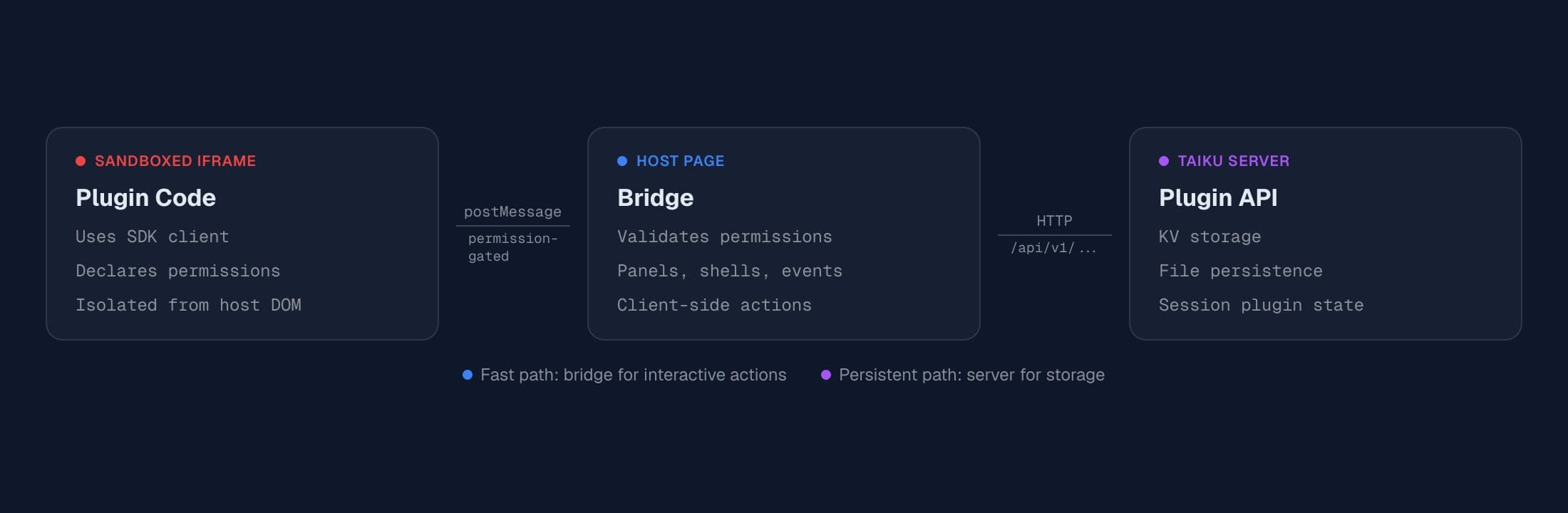
Taiku plugins are sandboxed extensions that run inside your terminal session. Each plugin is an iframe -- isolated from the host page and from other plugins -- that communicates with taiku through a typed message protocol. This architecture means plugins can add rich functionality to your workspace without ever gaining direct access to the DOM, your cookies, or other browser state.
What plugins look like in practice
When you enable a plugin, its effects show up in several places across the taiku interface:
Panels appear as new panes in your workspace. A plugin might add a sidebar panel for browsing files, a bottom panel for viewing event logs, or a floating overlay for quick status checks. Panels are rendered in sandboxed iframes and can be toggled, resized, and repositioned like any other tile in the workspace.
Toolbar actions add buttons to the session toolbar. Clicking a toolbar button typically opens an associated panel or triggers a plugin-defined action. Plugins can also attach badge counters to their toolbar buttons -- for example, showing the number of unread notifications.
Hotkeys let you trigger plugin actions from the keyboard. A plugin might
register Cmd+Shift+A to toggle its panel open and closed (on Windows and
Linux, read that as Ctrl+Shift+A). These hotkeys appear alongside taiku's
built-in shortcuts in the command palette.
Shell aliases inject named commands into your terminal environment. When you type an alias command, taiku intercepts it via an OSC escape sequence and routes the invocation back to the plugin, which can then perform actions like opening a panel or running a workflow.
Background panels are invisible iframes that run event listeners without any visible UI. The Chat Notifier plugin, for instance, runs entirely in the background -- listening for new chat messages and surfacing them as desktop notifications.
Installing a plugin
Plugins are managed through the plugin panel in your taiku session. To install one:
- Open the plugin panel from the toolbar or the command palette.
- Browse the available plugins. Each listing shows the plugin name, author, description, category tags, and the permissions it requests.
- Select a plugin to see its full details, including a description of what it does and which permissions it requires.
- Click Enable to install the plugin into your current session.
Plugins you are building yourself. In the plugin panel, open the Submit
tab and use Load Custom Plugin with the URL of your manifest.json. The
Building Plugins
guide covers dev servers, HTTPS, and tunnels so the manifest actually loads in
the browser.
When you enable a plugin, taiku loads its manifest, validates the declared permissions, and creates the sandboxed iframe. If the plugin declares panels, they become available immediately. If it declares toolbar actions, those buttons appear in the toolbar. The plugin's state is persisted in this client's local storage, so it remains enabled across page reloads.
To remove a plugin, open the plugin panel, find the plugin in your installed list, and click Disable. This tears down the iframe, removes any active panels, and unregisters hotkeys and toolbar actions.
Session-wide plugin sets
In taiku, plugin installation is not just a personal browser preference. The plugin set for a live session is session-managed.
If a tunnel admin installs a plugin, taiku treats that as a session change, not just a local preference. Other connected clients in the same session receive the plugin too. If the admin disables or uninstalls it, that change also applies to the shared session plugin set. This is why the plugin manager only exposes install, enable, disable, and uninstall controls to tunnel admins. Other participants can use the session's plugins, but they are not allowed to rewrite the shared tool set underneath everyone else.
The important nuance is that session-managed does not mean everything-about-the-plugin is globally shared. The manifest and its enabled/disabled state are session-wide, but local secrets and settings stay in the browser that owns them. Session KV is still shared inside the session, and user KV or plugin storage still remain scoped to the authenticated user and plugin. So when a session admin installs a plugin, everyone gets the surface area of the tool, but nobody automatically inherits someone else's API keys or private settings.
Permissions
Every plugin declares the permissions it needs in its manifest. taiku enforces these at runtime -- if a plugin calls a bridge method it does not have permission for, the call is rejected. Before enabling a plugin, review its permission list and ask: does it need these capabilities for what it claims to do?
The general principle: fewer permissions means less risk. A plugin with only
ui.panel and events.subscribe can display information but cannot modify your
session. A plugin with terminal.write and fs.write can execute commands and
change files.
For the full permission reference with risk levels and storage scopes, see Permissions.
Where plugin state lives
Plugins use four distinct storage layers, each with different scope, lifetime, and visibility. Understanding these layers helps you reason about what happens when you close a tab, switch devices, or share a session with collaborators.
Local secrets and settings (on this device)
Secrets and user settings are stored in this taiku client’s localStorage,
scoped to the plugin ID. This is where API keys, personal preferences, and
device-specific configuration live.
// Plugin reads a secret the user configured in the plugin settings UI
const apiKey = await taiku.getSecret("openai_api_key");

// Plugin reads a user setting (falls back to the default from the manifest)
const theme = await taiku.getSetting("theme");
This data never leaves this client. It is not synced across devices, not shared with other session participants, and not sent to the server. If you clear taiku’s stored site data (or reinstall the app), these values are gone.
Session KV (shared within one session)
Session KV is an in-memory key-value store scoped to a single session. All
participants in the session can read and write to it (if their plugins have
kv.read or kv.write permissions). This is the right place for collaborative
state that should be visible to everyone in the session but does not need to
survive after the session ends.
// Store shared state visible to all participants
await taiku.setPluginData("current_track", { title: "Song", playing: true });

// Another participant's plugin instance reads the same data
const track = await taiku.getPluginData("current_track");
Session KV has a 64 KiB limit per plugin per session. Data is lost when the session ends.
User KV (persistent per-user)
User KV is a server-backed key-value store scoped to the authenticated user and plugin. It persists across sessions and across devices -- if you log in from a different machine, your user KV data is there.
// Save a user preference that follows them across sessions
await taiku.setUserData("preferred_layout", "vertical");

// Retrieve it in a future session, on any device
const layout = await taiku.getUserData("preferred_layout");
This is the right choice for preferences, saved configurations, or any state that should follow the user rather than the session.
Plugin file storage (persistent server-side files)
Plugin storage provides server-side file storage for larger or binary data. The Music Player plugin, for example, stores uploaded audio files here.
// Upload a file to plugin storage
await taiku.writePluginFile("config.json", JSON.stringify(settings));

// List stored files
const files = await taiku.listPluginFiles();
// => [{ name: "config.json", size: 1024 }]

// Read a file back
const buffer = await taiku.readPluginFile("config.json");
Plugin file storage requires storage.read and/or storage.write permissions.
Files persist across sessions and are scoped to the authenticated user and
plugin.
Next steps
To see what ships with taiku out of the box, read about the Built-in Plugins.
To build your own plugin, continue to Building Plugins.