
Review code changes
See git diffs, stage or revert individual hunks, and trace any line's history without leaving your session.
When your working directory is a git repository, you can review exactly what changed right beside your terminals, handy when an agent is editing files and you want to watch its work.
Inline diff viewer
The diff viewer is a tile, so it sits alongside your terminals. Open it by double-clicking a repository path printed in terminal output, or by choosing View diff from a path's right-click menu.
The viewer lists every changed file with its status, modified, added, deleted,
or renamed, and the count of added and removed lines. Click a file to expand its
syntax-highlighted diff. Use j and k to move between files quickly.
For each file you can:
- Copy the path or copy that file's diff to your clipboard.
- Open the file in the preview or editor panel.
- Discard the file's changes to revert it to the last commit.
Across the whole repository, the top bar lets you filter the file list, refresh to reload, copy the full diff as one unified patch, or discard all changes at once.
Discarding is permanent, it throws away uncommitted work for that file or the whole repository. Use it deliberately.
Stage or revert a hunk
You do not have to accept or reject a whole file. Inside a diff, hover over any line to reveal a small menu. From it you can copy the line, copy the surrounding hunk as a unified diff, or revert just that hunk back to its committed state, so you can keep part of a change and drop the rest.
Per-line history
To understand why a line looks the way it does, open the diff or file and pull up its history. Each line shows who last changed it and in which commit, and you can step back through earlier versions to see how a block evolved over time.
Edit with language intelligence
Open a file from the diff viewer or the terminal and it lands in an editor with the language server for that file wired in. A mistake gets an inline squiggle with a hover diagnostic, and completion suggests as you type, so you can fix something the review turned up without leaving the session.
Comment and suggest on code
Reviewing is not only reading, you can mark up the code in place. Open a file in an editor tile and each person picks a mode: Editing, Suggesting, Commenting, or Viewing. Select a span and leave a comment and it anchors to those lines with a gutter marker, a highlight, and a threaded card in the margin rail you can reply to and resolve. In suggesting mode your edits land as tracked changes the author can accept or reject.
In a narrow tile, like a terminal and editor split, the rail collapses each annotation to a single line: a comment shows its author and a snippet, a suggestion shows the insertion or deletion. Click a card to expand just that one.
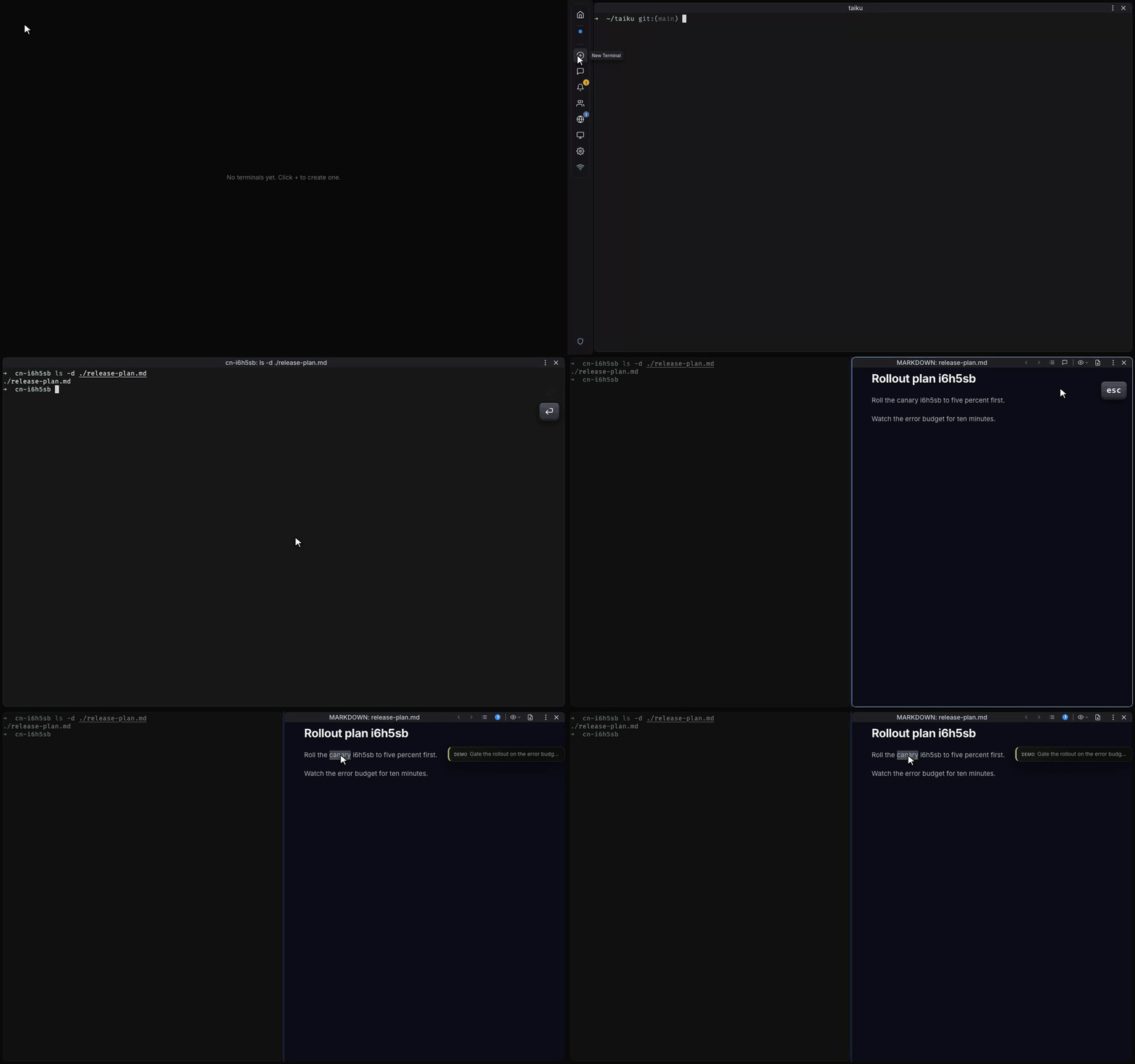
A comment stays anchored when you switch the same tile to Diff, side by side, or Blame, so a note you left while editing is still there while you review the change or read a line's history.
Agents can annotate too. From a session terminal, taiku func comment and
taiku func suggest place a comment or a tracked edit on a file by line or by
matched text, and it appears live in the editor tile next to the terminal, so an
agent can flag a spot for you to look at.
Branch status and pull requests
The diff viewer's sidebar also shows where your branch stands:
- The current branch name and its upstream.
- How far the branch is ahead (↑) or behind (↓) the remote.
- A warning when the branch has no upstream yet, so nothing has been pushed.
If an open pull request exists for the branch, a #number chip appears. Click it to open the pull request in a browser tile inside your session. The chip shows up when your host is signed in to GitHub; otherwise it stays hidden.
Track what a command changed
You can record the diff that each command produces, which makes it easy to see exactly what a build script or an agent run touched.
In the Activity panel (the bell icon), turn on Track diffs. From then
on, every command that finishes shows a Δ N badge, where N is the number
of files that command changed. Click the badge to open that command's diff in
the viewer, so you review the result of one specific run instead of the whole
working tree.
This pairs naturally with agents: leave Track diffs on, let an agent work through a task, then step through each step's changes from the Activity panel.
Rewind a run with the Timeline
With Track diffs on, taiku keeps a history of every recorded run: each command and each agent step. Open the Timeline from the Activity panel to see them as a list you can move through.
From the Timeline you can:
- Open any run's diff to see exactly what it changed.
- Compare any two runs to see what happened between them.
- Revert a run to undo just that run's changes on your working tree, leaving everything else intact.
- Reapply a run you previously reverted.
This is the fastest way to undo an agent's changes when it goes down the wrong path: instead of untangling the whole working tree, revert the specific step that introduced the problem and keep the rest. Revert and reapply merge cleanly against your current files, so you can move back and forth without losing work.